Assigning a License to someone else
As a Customer, you have purchased one or more subscriptions. Each subscription includes one or more licenses.
Note: Subscriptions with multiple licenses are available only for Full Stack Analyst plans.
Step 1: Open the Customer Licenses Page
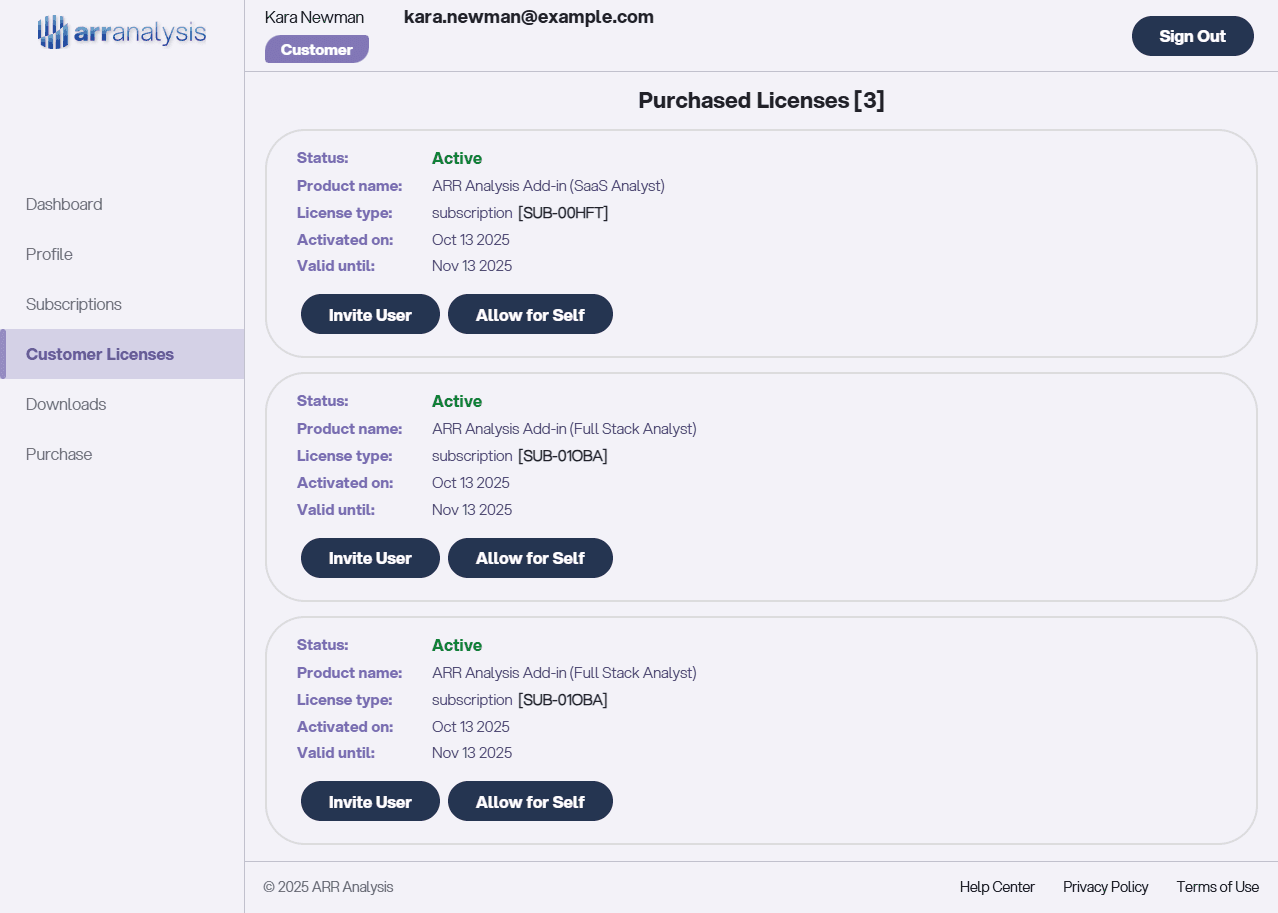
Go to the Customer Licenses page. The image below shows a customer with three licenses:
- One license from a SaaS Analyst subscription
- Two licenses from a Full Stack Analyst subscription
Step 2: Invite someone to use the License
As a Customer, you decide who can use each license. For the license you want to assign to someone else — such as a coworker or friend — click Invite User.
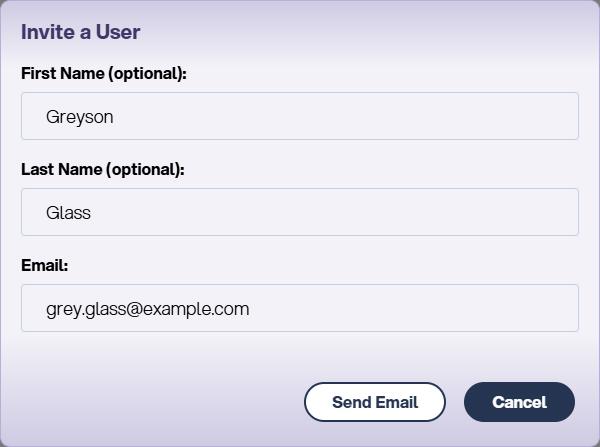
When you send the invitation, the system emails the recipient a registration link.
- The link is valid for 24 hours.
- If they don’t register in time, you’ll need to re-send the invitation.
Note: You can invite multiple people to a single license, but only one person can claim it.
For example: If you invite 3 people, the first person to register and assign the license to themselves will be the one who can use the add-in.
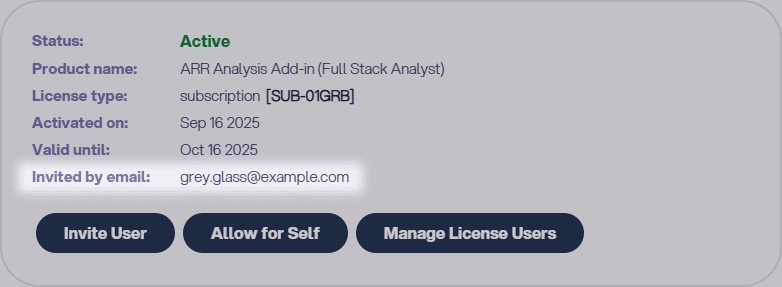
Step 3: Track the Invitation Status
Once the user registers through the email link, the license will show them as an Allowed User.
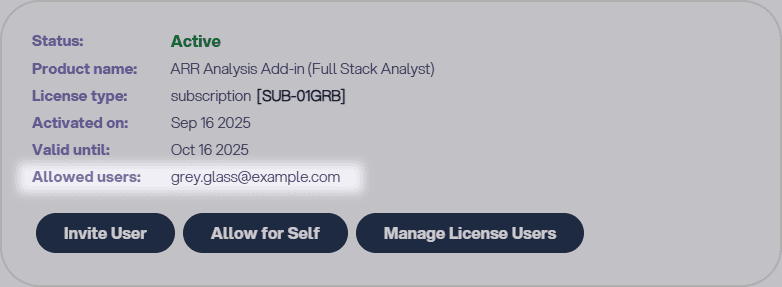
When they assign the license to themselves, they will appear as the Assigned User.
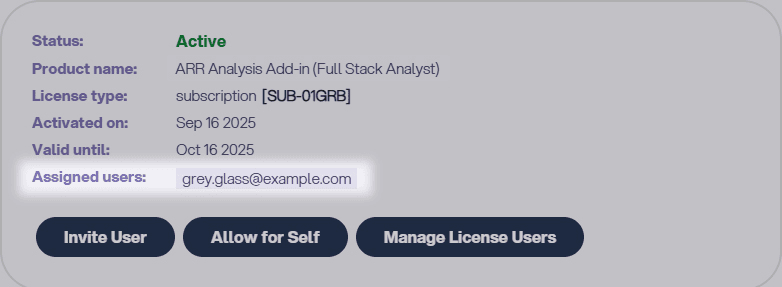
This gives you full visibility:
- Invited by Email → Email sent
- Allowed Users → User registered
- Assigned Users → License claimed